

Prerequisites
- Access to a Featul workspace.
- Your Kolaria Organization ID.
- A Kolaria API key with read access to posts (
posts.read).
Connect Kolaria to Featul
- In Featul, open the Changelog page.
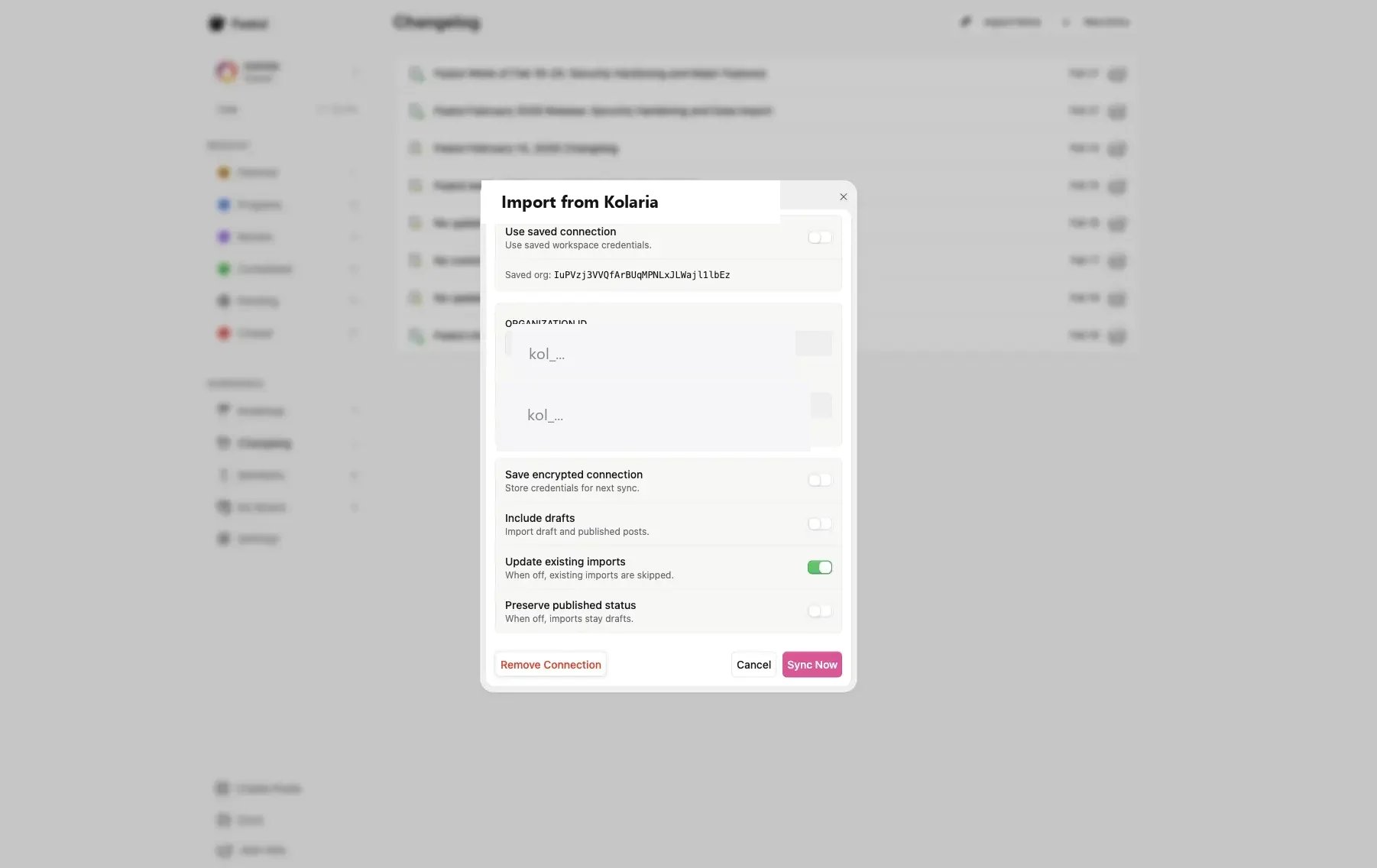
- At the top of the page, click Import from Kolaria.
- In the import dialog, enter your Organization ID and API key from Kolaria.
- Optional: enable Save encrypted connection if you want Featul to reuse these credentials.
- Click Sync Now to start the import.
Where to find your Kolaria credentials
- Open the Kolaria dashboard and select your organization.
- Copy the Organization ID from Settings > General.
- Create an API key under API Keys in the sidebar. Read access to posts is enough.
- Return to Featul and paste both values into the Import from Kolaria dialog.
Notes
You can import both draft and published content by enabling Include drafts.
You can update previously imported entries by enabling Update existing imports.
Questions about the import dialog itself go to Featul. Questions about API keys or the posts API go to Kolaria support.