> ## Documentation Index
> Fetch the complete documentation index at: https://docs.kolaria.com/llms.txt
> Use this file to discover all available pages before exploring further.
# Framer
> Import Kolaria content into Framer with the Kolaria marketplace plugin.
This guide shows how to connect Kolaria to [Framer](https://www.framer.com/) and pull your posts into a Framer site with the official Kolaria plugin. Framer is listed under **Output** on the Integrations page; its card opens the same four-step setup guide described here.
## Prerequisites
* Access to a Framer project.
* A Kolaria API key with read access to posts (`posts.read`).
* Posts in Kolaria that you want to import.
## Install
### Framer Marketplace
Install the official Kolaria plugin from the [Framer Marketplace](https://www.framer.com/marketplace/plugins/notra/).
### Inside Framer
1. Open your Framer project.
2. Open **Assets** > **Plugins**.
3. Search for `Kolaria`.
4. Click **Install**.
## Connect Kolaria to Framer
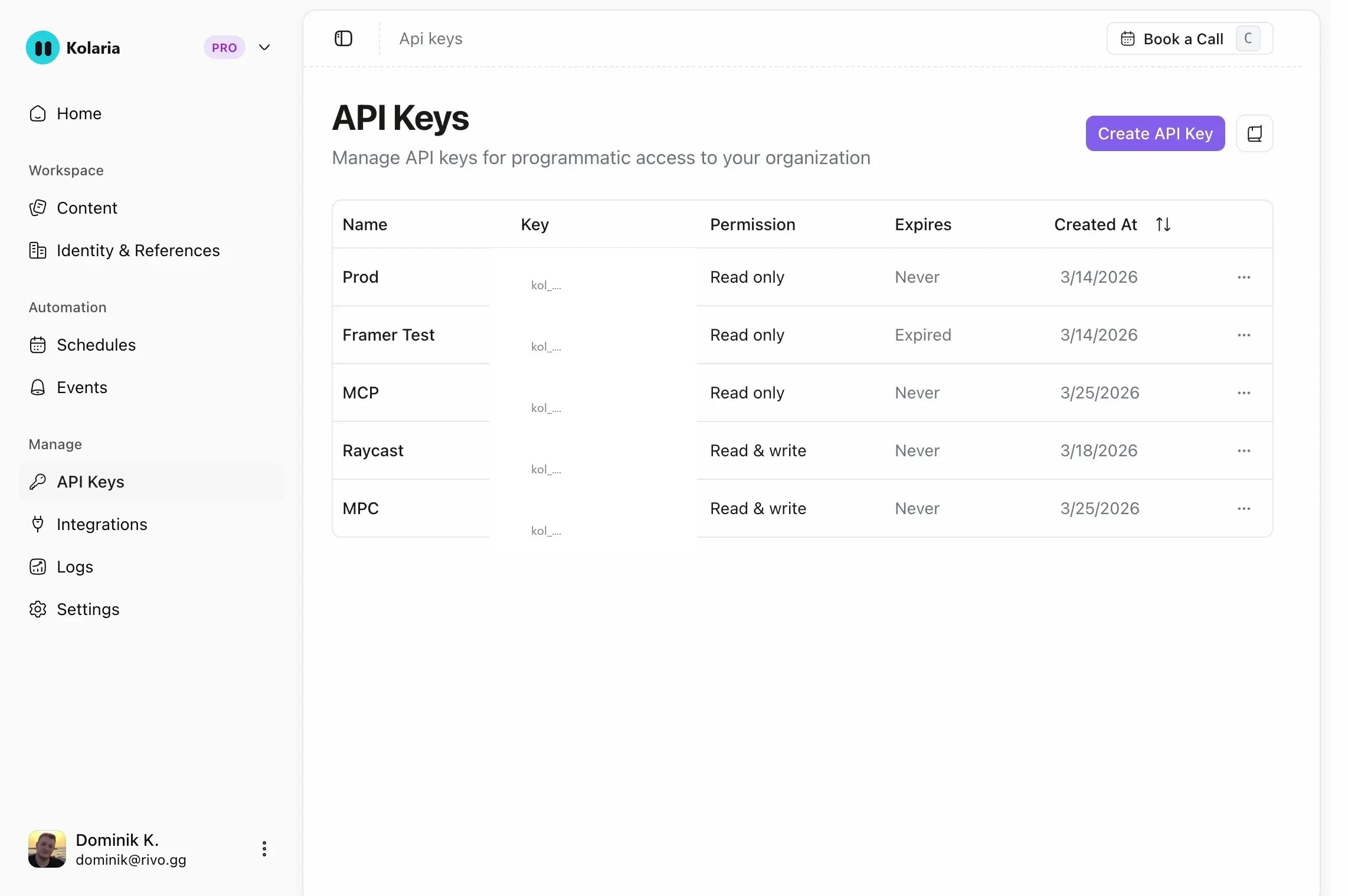
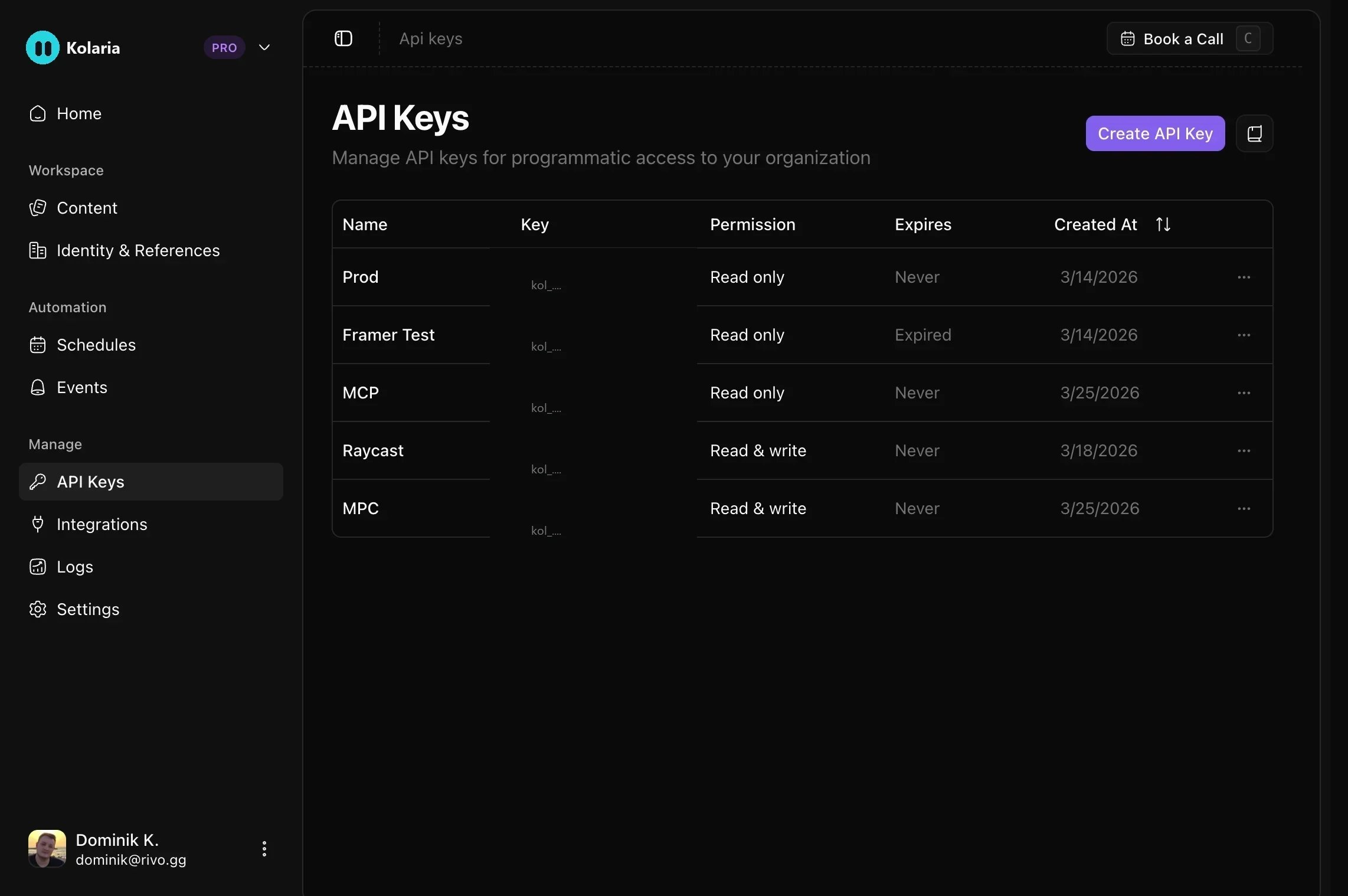
1. In the Kolaria dashboard sidebar, open **API Keys**.
2. Create a new key with read-only access to posts.
 3. Open the Kolaria plugin in Framer.
4. Paste your API key when prompted.
5. Browse your posts in the plugin and choose which ones to pull into your Framer site.
The plugin only reads from Kolaria. A key with `posts.read` is enough; it cannot change anything in your workspace.
3. Open the Kolaria plugin in Framer.
4. Paste your API key when prompted.
5. Browse your posts in the plugin and choose which ones to pull into your Framer site.
The plugin only reads from Kolaria. A key with `posts.read` is enough; it cannot change anything in your workspace.